Module 1 Troubleshooting Common Services and Peripheral Connectivity Issues 1.4.2 Module Quiz Answers
Module 1 Troubleshooting Common Services and Peripheral Connectivity Issues 1.4.2 Module Quiz Answers
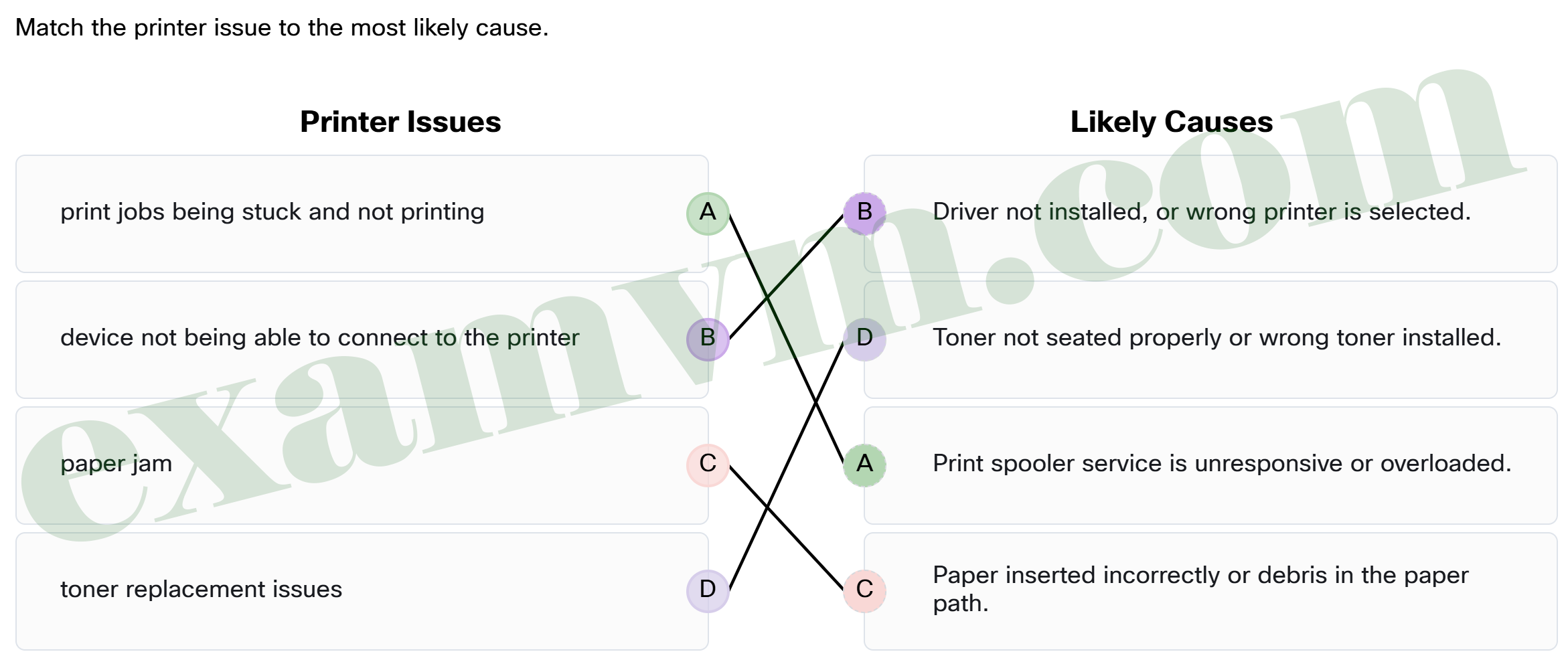
2. Which statement describes the function of a scanner?
- It converts a digital document into a printed physical copy.
- It connects to a projector for displaying documents on a screen.
- It transmits digital documents directly to a fax number.
- It captures a physical document and saves it as a digital version.
A scanner captures an image of a physical document and saves it as a digital file, making it easy to store, share, or email paperwork electronically.
3. A user reports that their office printer can no longer scan or send faxes, even though printing still works. The printer is connected over Wi-Fi and is a multi-function device (MFD). What is the most likely cause of this issue?
- The printer’s paper tray is overloaded.
- The scan-to-cloud settings are misconfigured.
- The printer’s multi-function software or drivers may not be fully installed or have become corrupted.
- The phone line service is down.
Multi-function printers rely on full-featured software drivers to support scanning, faxing, and other non-print functions. If these drivers are outdated, missing, or corrupted, printing may still work, but scanning or faxing may fail. Reinstalling or updating the driver often resolves the issue.
4. What is the main purpose of the gpupdate command in a Windows Active Directory environment?
- It removes outdated Group Policy Objects from the Active Directory forest to aid accessibility.
- It refreshes and reapplies Group Policy settings for the computer and signed-in user.
- It resets all user account passwords stored in the Group Policy Object.
- It creates a new Group Policy Object and links it to a domain.
The gpupdate command is used to immediately apply GPO settings without waiting for the automatic refresh cycle, ensuring updated policies are enforced right away.
5. A user reports that their wired keyboard suddenly stopped working. The support technician checks and finds it is plugged into a USB port. What should the technician try first?
- Replace the keyboard with a wireless model.
- Reboot the computer and check BIOS settings.
- Open Task Manager to test if any keys respond.
- Unplug the keyboard and plug it into a different USB port.
Switching to a different USB port can quickly determine whether the issue is with the port or the keyboard itself. It is a fast, simple first troubleshooting step.
6. A receptionist at a law office is trying to send a fax to a client but keeps getting an error. She confirms the number is correct and retries several times, but the fax still won’t go through. The phone cord seems fine, and she hears no dial tone when she tests the line. What is the most likely issue?
- The recipient’s line is busy and needs more time.
- The fax machine has too many pages in the feed tray.
- The phone cable might be in the wrong port on the fax machine.
- The fax resolution setting is too high for the recipient’s machine.
A common reason for no dial tone on a fax machine is that the phone line is plugged into the wrong port. Be sure the line is connected to the port labeled “LINE” on the back of the fax device.
7. What is a key benefit of using Groups when managing users with Local Users and Groups in Windows?
- It simplifies user management by assigning permissions through group membership.
- It allows temporary users to save files that persist after logoff.
- It assigns a unique permission set to each individual user account.
- It ensures that all users are automatically given administrative rights by default.
Using Groups allows administrators to efficiently manage permissions by assigning users to roles with predefined access, instead of configuring each user individually.
8. Which permissions describe the main difference between the Viewer, Commentor, and Editor roles in Google Drive?
- Viewer can share files, Commentor can delete content, and Editor can only see content and post suggestions.
- Viewer can change formatting, Commentor can change text, and Editor can change permissions.
- Viewer can only read content, Commentor can leave feedback, and Editor can make changes and share the file.
- Viewer can download files, Commentor can change text, and Editor can only add suggestions.
Google Drive permissions let the user choose what level of access others have – Viewer for seeing the file, Commentor for giving feedback, and Editor for full editing and sharing rights.
9. Match each touchscreen issue to the most likely cause.
- Ghost touches or random taps. ==> Electrical interference or a dirty screen.
- Touchscreen works but, only the display shows (no touch input). ==> USB cable for touch input is not connected.
- Touchscreen is not responding. ==> Touch input is disabled in Device Manager.
- Touch registers in the wrong spot. ==> The touchscreen is not calibrated.
When touches register in the wrong spot, calibration is usually the issue. Ghost touches or random taps are often caused by electrical interference or dirt on the screen. If the display works but there is no touch response, the USB cable for touch input is probably disconnected.
10. What is a key function of Microsoft Entra ID in IT support for cloud environments?
- It works with Microsoft 365 and does not integrate with other SaaS apps to enhance focus and simplicity.
- It manages on-premises user accounts and local devices.
- It enables single sign-on (SSO) and multi-factor authentication (MFA) for cloud and hybrid applications.
- It replaces all local user accounts with cloud-based ones automatically.
It enables single sign-on (SSO) and multi-factor authentication (MFA) for cloud and hybrid applications.
11. What is one key benefit of using Google Drive for Desktop instead of only accessing Google Drive through a web browser?
- It allows users to edit shared files only when offline, preventing conflicts during collaboration.
- It lets users open and save files directly from File Explorer, with automatic cloud syncing.
- It moves all Google Drive files permanently to the local device to speed up performance.
- It enhances file security by requiring users to confirm each file change with two-factor authentication.
Google Drive for Desktop integrates with File Explorer, allowing users to work on files locally while syncing changes automatically to the cloud, eliminating the need for manual uploads.
12. Which directory service is most suitable for managing a large, cloud-based infrastructure while ensuring scalability and centralized user authentication across various cloud applications?
- Entra ID
- Local Users and Groups
- Active Directory
- AWS IAM
Entra ID is a cloud-based identity and access management service that is designed to provide centralized authentication and user management for cloud applications. It is scalable and integrates well with cloud-based services, making it the best choice for organizations with a large, cloud-based infrastructure. Unlike Active Directory, which is typically used for on-premise environments, Entra ID is built to support cloud environments and offers features like seamless integration with other Microsoft services and third-party applications.
13. A user says their external USB drive appears in File Explorer, but they cannot find any of their files. What is the most likely next troubleshooting step?
- Check if the files are hidden or if the drive uses encryption.
- Restart the system and run the antivirus.
- Format the drive to restore file visibility.
- Replace the USB drive with a new one immediately.
When a drive appears but no files are visible, it is often due to hidden files, encryption, or incompatible file systems—these should be checked before taking more drastic action.
14. An IT technician is helping a user set up secure access to their cloud account. Instead of sending a code via email, the technician recommends installing an app on the user’s phone that generates a temporary login code. This code refreshes every 30 seconds and is never sent over the internet. What type of multifactor authentication method is the technician recommending?
- SMS-based two-factor authentication.
- Smart card-based authentication with a physical token.
- Biometric authentication using a fingerprint scanner.
- Authenticator application using a time-based one-time password (TOTP).
The technician is recommending a secure MFA method where an authenticator app like Microsoft or Google Authenticator generates a temporary code based on time and a shared secret, reducing the risk of interception.
15. Jordan is an employee at a company where everyone logs in using domain accounts connected to the organization’s network. He forgot his password and cannot access any of his files or email. As the IT support technician responsible for helping him regain access, what is the correct way to reset his password?
- Log into his workstation and use the Control Panel to reset the password.
- Open Active Directory Users and Computers (ADUC) on a secure workstation and reset his password from there.
- Use Local Users and Groups Manager to reset his account locally.
- Have Jordan wait for the account to reset itself after multiple failed attempts.
Since Jordan is using a domain account, the right approach is to reset his password using the Active Directory Users and Computers (ADUC) tool on a secure workstation with administrative access.
16. An employee contacts IT support because the employee can’t see the shared folder for their department. The technician checks the connection to the internal server and sees that the SMB protocol isn’t responding. The user can still access internet services, but not the shared drive. What is the most likely cause of the problem?
- The shared drive files were accidentally deleted from the local Downloads folder.
- The user’s computer cannot connect to the company’s SMB file sharing server.
- The user’s internet browser settings have blocked access to cloud storage.
- The user needs to reinstall their Google Drive or Dropbox sync app.
17. A support technician is helping a user who cannot hear any sound from wireless headphones during a virtual meeting. What is the most likely the reason?
- The headphones are plugged into the wrong USB port.
- The computer’s speakers are likely to be physically damaged.
- The meeting software does not support headphones.
- The headphones are not properly connected via Bluetooth.
18. A user is preparing for a virtual meeting but says they cannot see themselves on the screen. They are using a Cisco DX teleconferencing device. As the IT support technician, what is the most appropriate first troubleshooting step?
- Restart the user’s Wi-Fi router.
- Reset the device to factory settings.
- Reinstall the teleconferencing app.
- Check if the built-in camera is covered or disabled.