Module 3 Troubleshooting the Windows Operating System 3.6.2 Quiz Exam Answers
Module 3 Troubleshooting the Windows Operating System 3.6.2 Quiz Exam Answers
This Module 3 Troubleshooting the Windows Operating System 3.6.2 Quiz Exam Answers focuses on assessing a learner’s understanding of essential concepts and practical skills related to troubleshooting the Windows operating system. It covers common Windows startup and performance issues, system errors, driver and application problems, and the appropriate use of built-in diagnostic and recovery tools such as Task Manager, Event Viewer, Device Manager, System Restore, and Safe Mode. By completing this quiz, learners demonstrate their ability to identify symptoms, analyze probable causes, and apply systematic troubleshooting steps to restore normal system operation while maintaining system stability and data integrity.
1. Which statement describes a feature about Windows Update?
- Users must manually check for updates every day to ensure their system is secure and up to date
- Feature updates are released daily to introduce minor enhancements and security improvements.
- Windows Update only provides security patches and does not include any driver or firmware updates.
- Quality updates are released every second Tuesday of the month, a schedule known as Patch Tuesday.
Windows Update is integrated into the Windows operating system to manage system maintenance, including security patches, reliability fixes, and other updates. Quality updates, often referred to as Patch Tuesday Updates, are specifically released on the second Tuesday of every month. This helps ensure users receive essential updates regularly.
2. Match the steps in the correct order for using OneDrive on the computer.
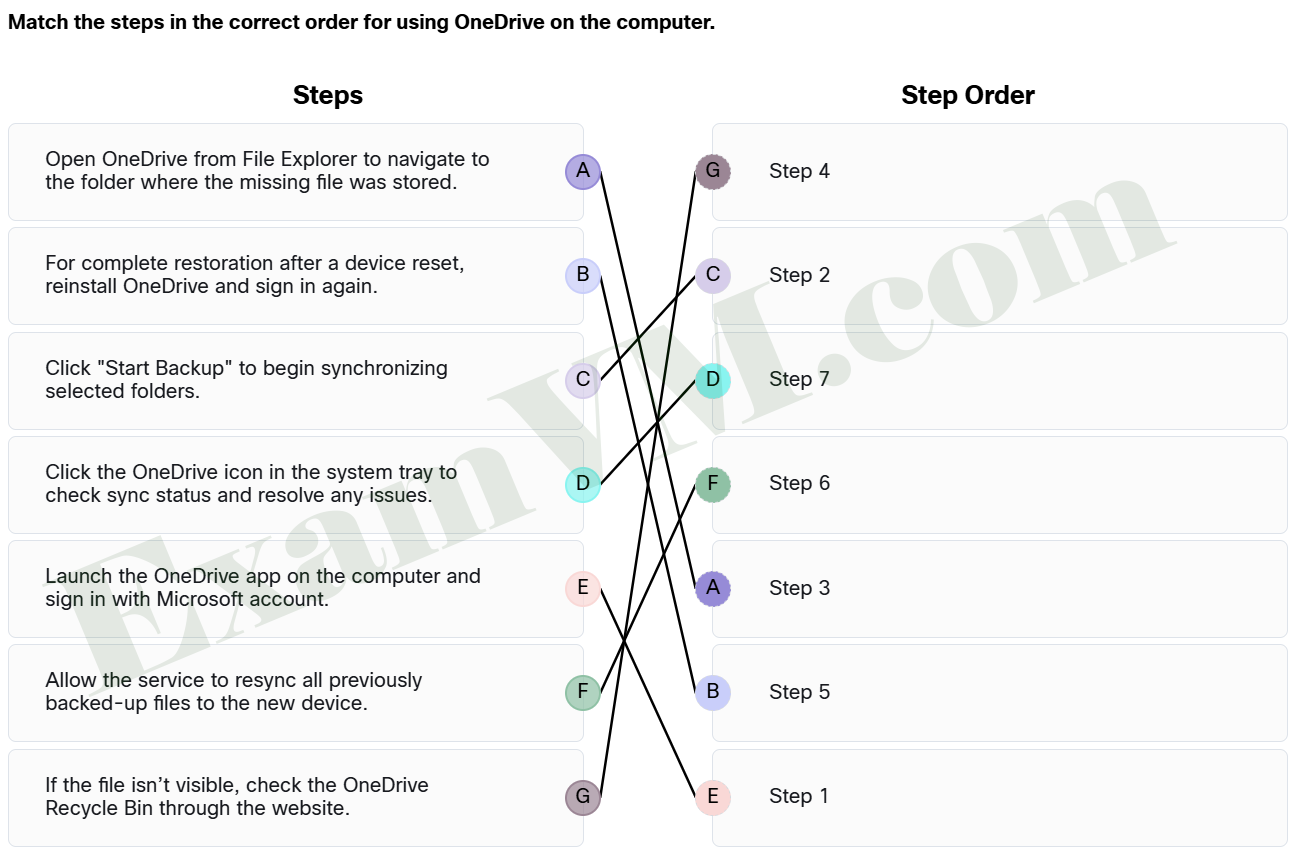
- Launch the OneDrive app on the computer and sign in with Microsoft account. ==> Step 1
- Click “Start Backup” to begin synchronizing selected folders. ==> Step 2
- Click the OneDrive icon in the system tray to check sync status and resolve any issues. ==> Step 7
- Open OneDrive from File Explorer to navigate to the folder where the missing file was stored. ==> Step 3
- Allow the service to resync all previously backed-up files to the new device. ==> Step 6
- If the file isn’t visible, check the OneDrive Recycle Bin through the website. ==> Step 4
- For complete restoration after a device reset, reinstall OneDrive and sign in again. ==> Step 5
To use OneDrive on a computer:
- Launch the OneDrive app on the computer and sign in with Microsoft account.
- Click “Start Backup” to begin synchronizing selected folders.
Restoring files from OneDrive:
- Open OneDrive from File Explorer to navigate to the folder where the missing file was stored.
- If the file isn’t visible, check the OneDrive Recycle Bin through the website.
- For complete restoration after a device reset, reinstall OneDrive and sign in again.
- Allow the service to resync all previously backed-up files to the new device.
- Click the OneDrive icon in the system tray to check sync status and resolve any issues.
3. A user wants to prevent the laptop screen from dimming automatically and insists on keeping the display at maximum brightness at all times. What is the likely outcome of this approach?
- The screen will remain at maximum brightness, but no significant changes in power usage or device performance will occur.
- The screen will automatically adjust brightness to conserve battery, improving overall device performance.
- The display will remain at maximum brightness, which will increase energy consumption and shorten battery life.
- The display brightness will remain at maximum, but power management features will still operate in the background, ensuring battery efficiency.
Manually setting the screen brightness to maximum at all times disables adaptive brightness and any power management features, which leads to higher energy consumption and a shorter battery lifespan. While this keeps the display bright, it is not an efficient use of power. Power management features are designed to optimize battery life and turning them off can significantly impact device performance and energy efficiency.
4. What is the primary purpose of BitLocker in Windows operating systems?
- to create backups of important files
- to efficiently manage user accounts and permissions
- to optimize system performance
- to provide full disk encryption for data protection
BitLocker is Microsoft’s full disk encryption feature, designed to protect data by encrypting entire drives. This robust data protection helps ensure that even if malicious actors gain physical access to a device, they cannot easily retrieve the encrypted data without proper authentication.
5. A user reports that text appears blurry on their new high-resolution monitor. What is the most likely cause of this issue?
- The monitor’s refresh rate is set too low.
- The screen brightness is set too high, and the refresh rate is set too low.
- The monitor cable is not securely connected.
- The display resolution does not match the monitor’s native resolution.
When a display resolution does not match the monitor’s native resolution, the screen may scale improperly, leading to blurry text and images. High-resolution monitors are designed to display content at their native resolution for optimal clarity.
6. In Windows 11, how can a user adjust the duration for how long notifications stay on-screen before automatically dismissing?
- Change the screen timeout settings in the Display section of the Settings menu.
- Open the Visual effects settings in the Accessibility features and adjust the notification duration.
- Use the “Do not disturb” feature to control how long notifications appear.
- Modify the notification settings in the Taskbar settings to extend the display time of notifications, allowing them to stay visible for a longer period.
To adjust how long notifications stay on-screen in Windows 11, access the Visual effects settings in the Accessibility features. This allows the user to modify the duration for which notifications remain visible, with a range from five seconds to up to five minutes.
7. What should a user do in the BIOS or UEFI menu to change the boot priority in order to boot from a USB drive?
- Increase the RAM allocation for the USB device.
- Move the USB Storage Device to the top of the boot priority list.
- Disable the hard drive in the boot settings.
- Change the selected operating system option within the BIOS settings to a different one based on user preference or requirements.
To boot from a USB drive, the user needs to access the Boot Order, Boot Priority, or Boot Settings section in the BIOS or UEFI menu. By moving the USB Storage Device to the top of the boot priority list, it ensures that the computer will check the USB drive first during startup. After saving these changes and exiting the BIOS, the system will attempt to boot from the specified device according to the new order defined.
8. A graphics designer uses multiple monitors to work efficiently. She edits a website on one monitor, views the changes on another, and uses her laptop to browse image libraries. Which display setting configuration is most suitable for this workflow?
- presentation mode
- single display mode
- duplicate display mode
- extended display mode
Extended display mode allows each screen to function as an independent workspace, enabling the designer to edit, preview, and browse images across multiple screens simultaneously.
9. Why is understanding how to adjust the boot sequence important for troubleshooting system issues?
- It enables users to boot from alternative devices when necessary.
- It allows users to change the operating system installed on their PC.
- It increases the processor speed during startup.
- It helps in modifying power settings of the computer.
Understanding how to adjust the boot sequence is crucial because it allows users to boot their PCs from different devices, such as USB drives, CDs, or external hard drives, especially when troubleshooting system issues or performing repairs. Whether making permanent changes in the BIOS/UEFI settings or temporarily selecting a boot device, this knowledge can significantly streamline the resolution of critical problems and enhance overall system management.
10. Why do different applications have varied update schedules?
- Users can only update applications if they have a reliable internet connection to ensure that all components of the application are installed.
- Some applications require more resources for updates than others.
- The update frequency is determined by the type of application and its need for security and performance improvements.
- All applications are developed by different companies.
Various applications have different update schedules based on their purpose and requirements. Web browsers and security software often update frequently to address vulnerabilities and improve performance, while productivity tools may prioritize stability over frequent updates, resulting in fewer updates per year.
11. Match each video display issue to the most likely cause.
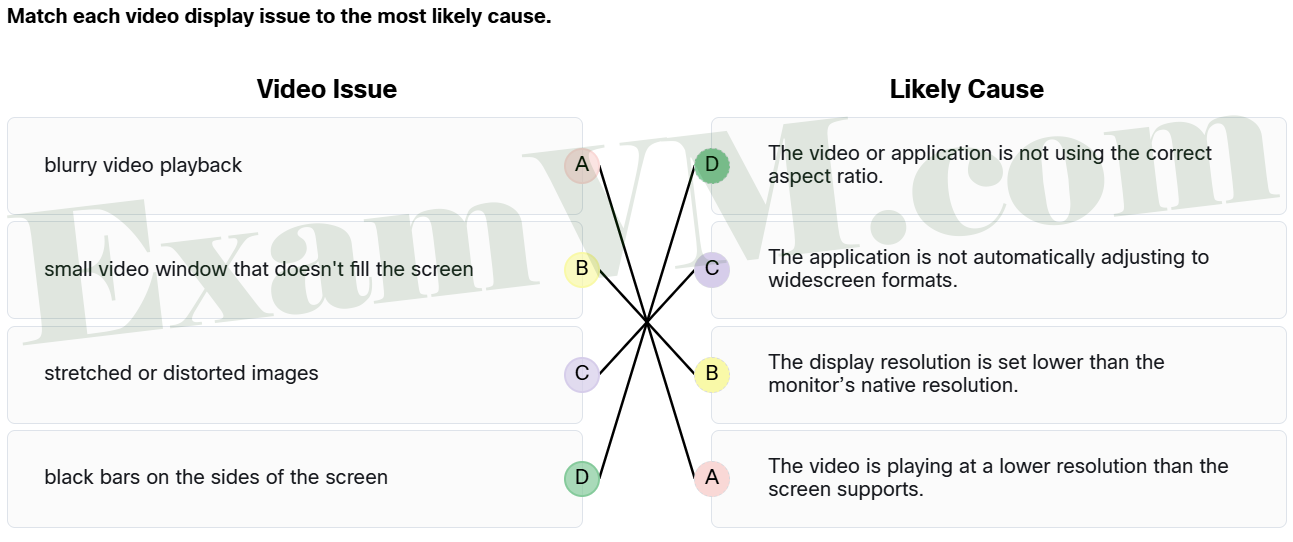
- black bars on the sides of the screen ==> The video or application is not using the correct aspect ratio.
- blurry video playback ==> The video is playing at a lower resolution than the screen supports.
- stretched or distorted images ==> The application is not automatically adjusting to widescreen formats.
- small video window that doesn’t fill the screen ==> The display resolution is set lower than the monitor’s native resolution.
Video display related issues include:
- The video or application does not use the correct aspect ratio – Black bars appear when the aspect ratio of the video does not match the screen’s native aspect ratio.
- The application is not automatically adjusting to widescreen formats – If an application does not properly support widescreen resolutions, the image may stretch or look unnatural.
- The video is playing at a lower resolution than the screen supports – Blurry video occurs when the playback resolution is lower than the monitor’s native resolution.
- The display resolution is set lower than the monitor’s native resolution – If the display resolution is not at the recommended level, content may not scale correctly, making videos appear smaller.
12. Alex has a gaming console that has been experiencing occasional freezing during gameplay. After researching, Alex discovers that the manufacturer has released a firmware update aimed at improving performance and stability. Alex is eager to perform the update but wants to ensure he does it correctly. What is the most important step Alex should take before proceeding with the firmware update on his gaming console?
- Buy a new device with the update already done.
- Consult the manufacturer’s instructions and read about any potential risks or features of the update.
- Download the firmware update and install it immediately.
- Turn off the console and then turn it back on before starting the update.
Before performing a firmware update, it is essential to follow the manufacturer’s instructions carefully to avoid making the hardware unusable. Researching the update allows the user to understand any new features, improvements, or risks associated with the update.
13. What is the quickest way to initiate Safe Mode from the Start Menu on a Windows system?
- Restart the computer normally and press F8 repeatedly during boot.
- Use the Command Prompt to execute a command for entering Safe Mode from the Start Menu.
- Hold down the Shift key while clicking the Restart option in the Start menu’s power options.
- Click on the Start menu and select Safe Mode from the list of options.
The fastest method to access Safe Mode is by using the Shift + Restart combination. By holding down the Shift key while selecting Restart from the power options in the Start menu, you will enter the Windows Recovery Environment (WinRE). From there, you can navigate through the options: Troubleshoot > Advanced options > Startup Settings > Restart, and choose one of the Safe Mode options.
14. Match the Windows 11 feature to the corresponding benefit.
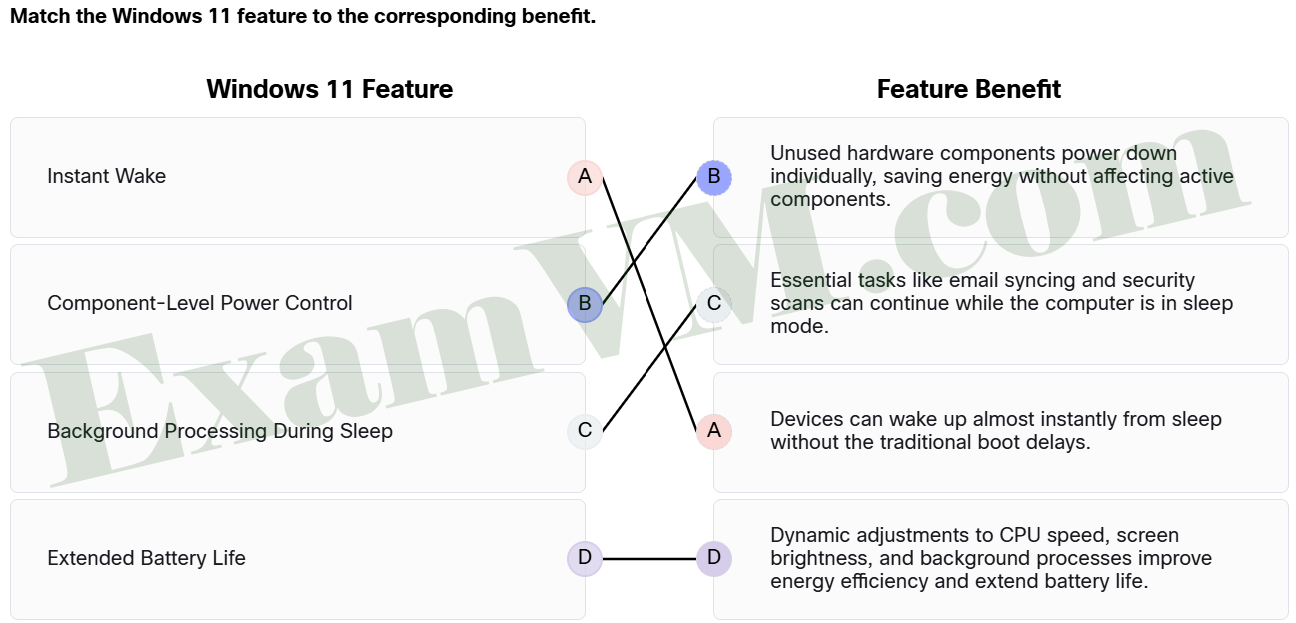
- Extended Battery Life ==> Dynamic adjustments to CPU speed, screen brightness, and background processes improve energy efficiency and extend battery life.
- Background Processing During Sleep ==> Essential tasks like email syncing and security scans can continue while the computer is in sleep mode.
- Component-Level Power Control ==> Unused hardware components power down individually, saving energy without affecting active components.
- Instant Wake ==> Devices can wake up almost instantly from sleep without the traditional boot delays.
Windows 11 features include:
- Instant Wake – Devices can wake up almost instantly from sleep without the traditional boot delays.
- Background Processing During Sleep – Essential tasks like email syncing and security scans can continue while the computer is in sleep mode.
- Component-Level Power Control – Unused hardware components power down individually, saving energy without affecting active components.
- Extended Battery Life – Dynamic adjustments to CPU speed, screen brightness, and background processes improve energy efficiency and extend battery life.
15. What are two key benefits of the power management features of Windows 11? (Choose two.)
- Protects storage device from failure over time.
- Increases internet speed and enhances security settings.
- Improves response times and reduces energy usage.
- Enhances graphics performance and boosts storage capacity.
- Maximizes battery life and extends device lifespan.
16. A user wants to make the mouse pointer more visible on their Windows 11 device. Which action will help improve the pointer’s visibility?
- Increase the screen resolution to make the pointer appear larger.
- Change the pointer’s speed and responsiveness in the Mouse settings to improve how it moves and reacts to user input.
- Enable the “Touch indicator” option to provide visual feedback for touchscreen users.
- Adjust the pointer’s size, color, and shape in the Mouse pointer and touch settings under Accessibility features.
Modify the mouse pointer’s size, color, and shape through the “Mouse pointer and touch” settings in Accessibility to improve its visibility.
17. Which two actions are necessary to get started with Dropbox? (Choose two.)
- Click “Sign up” at dropbox.com to create a new account.
- Verify your account through the confirmation email sent to you.
- Download the Dropbox desktop application from dropbox.com/download.
- Purchase a paid subscription for additional storage.
- Configure file types to be synchronized with Dropbox.
To begin using Dropbox, first create an account by clicking “Sign up” at dropbox.com. This account can be created using an email address or a Google account. After registration, download the Dropbox desktop application from dropbox.com/download to access user files directly from the computer.
18. When troubleshooting a Windows 11 device, which step is most effective for resolving performance problems caused by power settings?
- Reinstall the operating system to fix all power-related issues.
- Check the power settings and ensure that the device is not set to “Power Saver” mode if performance is required.
- Disable all background processes and programs to reduce power consumption.
- Adjust the screen resolution to the lowest setting to save power before attempting any other actions to save time.
If users are experiencing performance issues, it is important to verify that the device isn’t in “Power Saver” mode, which limits performance to save battery life. Checking and adjusting power settings can optimize the device’s performance without needing drastic steps.
19. Match features of the Narrator tool in Windows 11 to the correct descriptions.
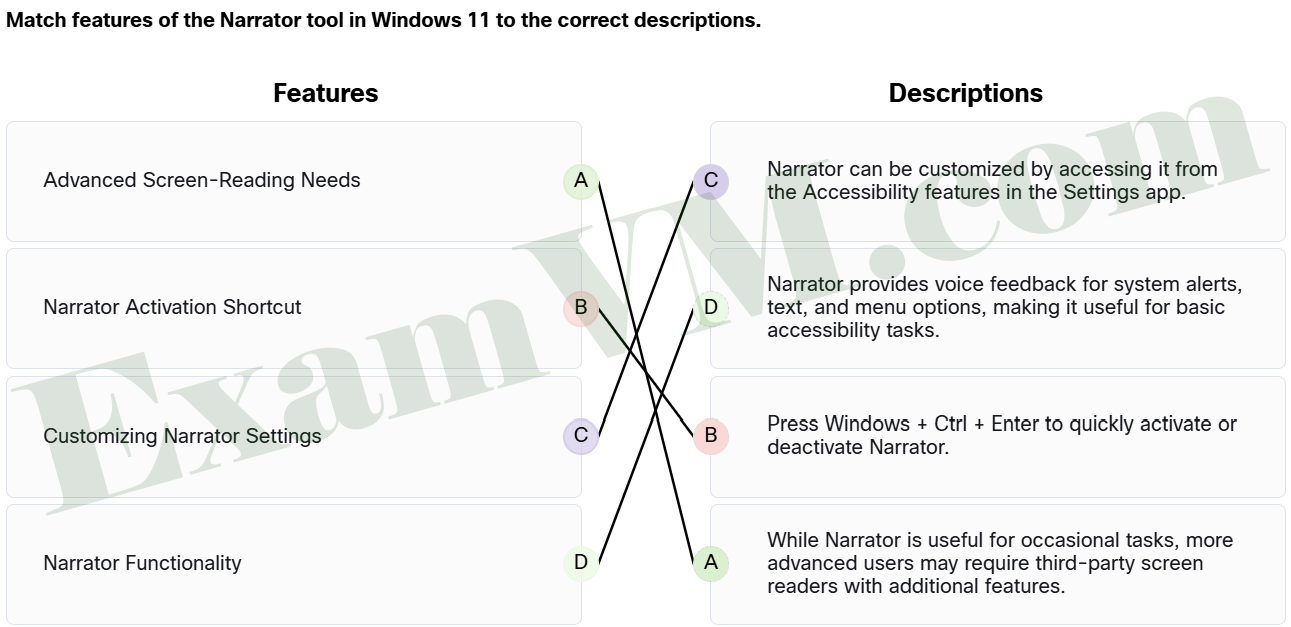
- Advanced Screen-Reading Needs ==> While Narrator is useful for occasional tasks, more advanced users may require third-party screen readers with additional features.
- Narrator Activation Shortcut ==> Press Windows + Ctrl + Enter to quickly activate or deactivate Narrator.
- Customizing Narrator Settings ==> Narrator can be customized by accessing it from the Accessibility features in the Settings app.
- Narrator Functionality ==> Narrator provides voice feedback for system alerts, text, and menu options, making it useful for basic accessibility tasks.
The features of the Narrator tool in Windows 11 include:
- Narrator Activation Shortcut – Press Windows + Ctrl + Enter to quickly activate or deactivate Narrator.
- Narrator Functionality – Narrator provides voice feedback for system alerts, text, and menu options, making it useful for basic accessibility tasks.
- Advanced Screen-Reading Needs – While Narrator is useful for occasional tasks, more advanced users may require third-party screen readers with additional features.
- Customizing Narrator Settings – You can customize Narrator by accessing it from the Accessibility features in the Settings app.