Module 2 Processes and Tools for Troubleshooting 2.5.2 Quiz Exam Answers
Module 2 Processes and Tools for Troubleshooting 2.5.2 Quiz Exam Answers
Module 2: Processes and Tools for Troubleshooting 2.5.2 Quiz Exam Answers focuses on building a clear understanding of how structured troubleshooting methods and appropriate tools are used to identify, analyze, and resolve technical issues efficiently. This module emphasizes the importance of following a logical troubleshooting process—such as identifying the problem, establishing a theory of probable cause, testing that theory, and implementing a solution—while selecting the correct hardware, software, and diagnostic tools at each stage. By mastering these processes and tools, learners develop the ability to reduce downtime, avoid unnecessary changes, and apply best practices that are essential for effective IT support and system maintenance.
1. Match the remote access tool to the primary features or uses.
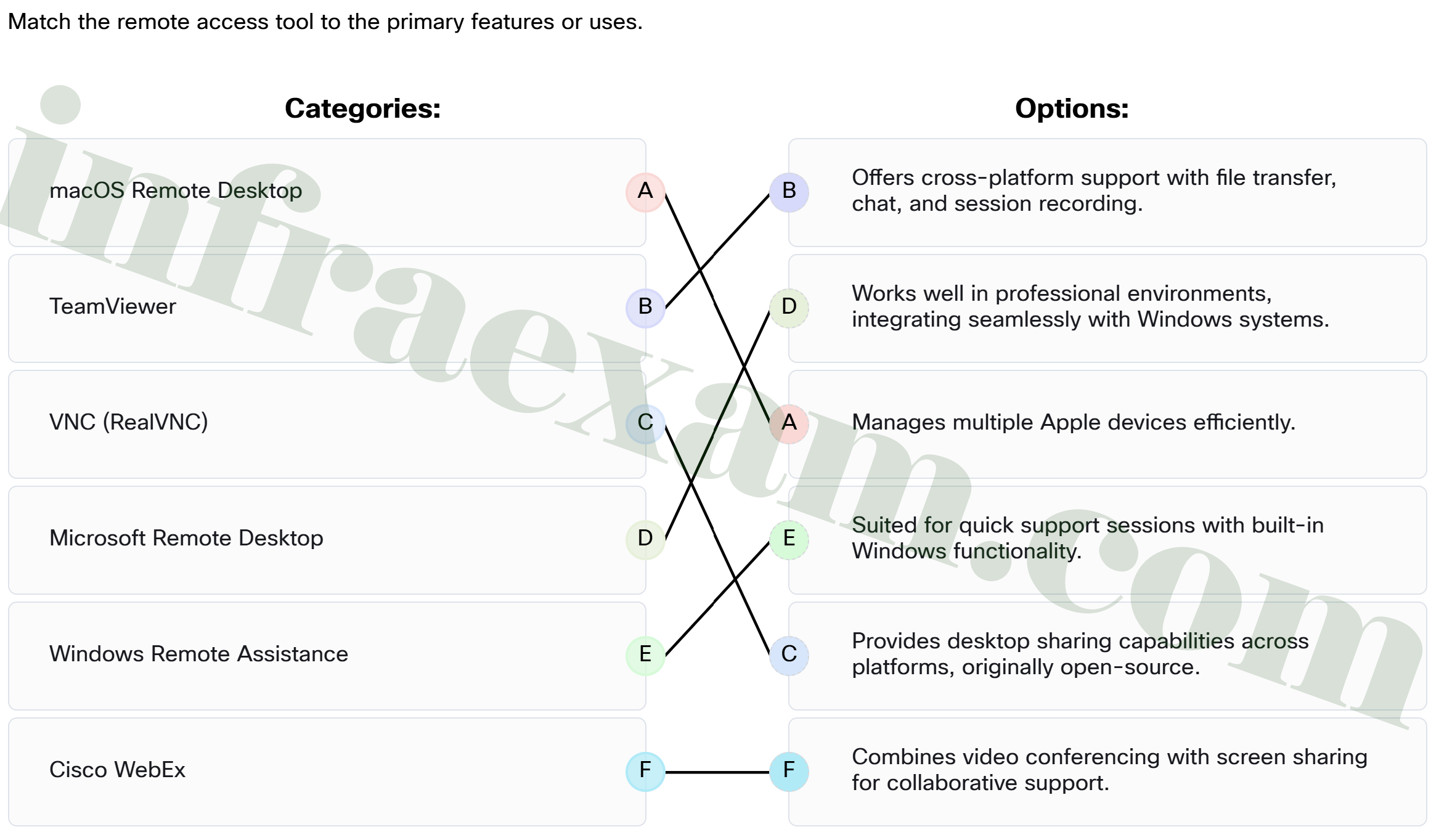
- TeamViewer ==> Offers cross-platform support with file transfer, chat, and session recording.
- Cisco WebEx ==> Combines video conferencing with screen sharing for collaborative support.
- Windows Remote Assistance ==> Suited for quick support sessions with built-in Windows functionality.
- VNC (RealVNC) ==> Provides desktop sharing capabilities across platforms, originally open-source.
- macOS Remote Desktop ==> Manages multiple Apple devices efficiently.
- Microsoft Remote Desktop ==> Works well in professional environments, integrating seamlessly with Windows systems.
2. Which way can an IT support technician improve the search engine queries to find more relevant results?
- Use only general terms like “Wi-Fi not working”.
- Avoid using generative AI responses embedded in search engines.
- Include error codes or specific phrases related to the issue.
- Search only for solutions on social media platforms.
Using specific phrases or error codes in your search queries, such as “laptop not detecting Wi-Fi after update,” helps narrow down the results to relevant solutions. This approach is more effective than general searches, which may yield broad or irrelevant results.
3. While troubleshooting, what is the best way to determine the exact cause of a problem?
- Start with the most complex theories to rule them out first, then proceed to more simple ones.
- Test each theory of probable cause one at a time, starting with the quickest and easiest.
- Skip testing and proceed directly to implementing a solution.
- Test multiple probable causes simultaneously to save time.
Test each theory of probable cause one at a time, prioritizing the quickest and simplest solutions first. This systematic approach minimizes errors and ensures you address the root cause efficiently.
4. When troubleshooting issues with a computer system, which process is the most critical precaution to take before beginning repairs?
- Test the hardware thoroughly.
- Back-up the customer’s data.
- Update the operating system and drivers.
- Document the serial numbers of the computer components.
When troubleshooting a computer system, backing up the customer’s data is the most critical precaution. Repairs, such as replacing hardware or reinstalling the operating system, carry the risk of data loss. Ensuring that data is backed up beforehand helps protect against liability and maintains trust with the customer.
5. Match the type of knowledge base to the description.
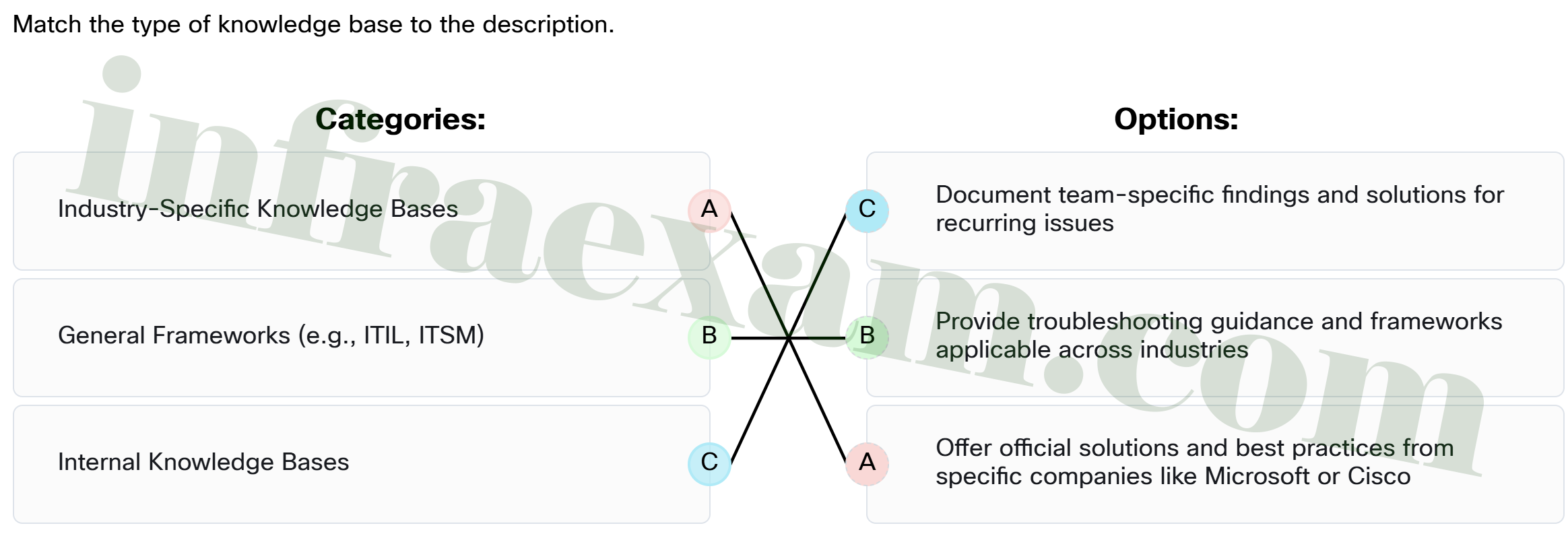
- Internal Knowledge Bases ==> Document team-specific findings and solutions for recurring issues
- General Frameworks (e.g., ITIL, ITSM) ==> Provide troubleshooting guidance and frameworks applicable across industries
- Industry-Specific Knowledge Bases ==> Offer official solutions and best practices from specific companies like Microsoft or Cisco
6. Which statement describes one way generative AI tools, like ChatGPT, can assist in troubleshooting?
- They physically repair devices remotely.
- They identify server anomalies that may lead to downtime if not otherwise identified.
- They answer queries and suggest potential causes for technical issues.
- They enforce company policies and privacy laws.
Generative AI tools, such as ChatGPT, assist by answering user queries and suggesting potential causes for problems, like why a laptop might fail to detect a connected printer. While they provide speed and convenience, their accuracy relies on input quality and available data, emphasizing the need for cross-referencing
7. What is a key benefit of participating in technical forums?
- They prioritize official manufacturer responses over user input.
- They provide real-world troubleshooting experiences and unique solutions.
- They eliminate the need for other troubleshooting resources, saving time and effort.
- They guarantee professional IT support for free.
Technical forums like Stack Overflow, Spiceworks, and Reddit’s IT communities are great for accessing practical advice and unique solutions from real-world experiences. Engaging with these communities by asking clear questions and sharing your findings can benefit both you and others.
8. What is one of the benefits of using Windows Remote Assistance?
- The user does not have to be present while the technician provides remote assistance.
- It is only available on Windows Enterprise versions to support enterprise IT operation.
- It can be used to support multiple devices running different operating systems.
- It is simple and secure, with built-in functionality in Windows.
Windows Remote Assistance is a secure and easy-to-use tool built into Windows, making it perfect for quick, one-time support sessions. This tool allows a trusted person to take over another PC remotely and help resolve issues, providing a simple, effective solution for short-term troubleshooting without additional software costs.
9. If a user is unable to collaborate in real-time using a tool like Microsoft Teams, which step should be prioritized during troubleshooting?
- Test the user’s device with another collaboration tool that is already installed to isolate the issue.
- Check if the user’s device is running the latest version of the operating system.
- Reinstall the application and clear the user’s browser cache.
- Verify that the user has the correct permissions and access to the shared resources.
When troubleshooting issues with collaboration tools, such as Microsoft Teams or Google Workspace, the most important step is verifying that the user has the correct permissions to access the shared resources. Without proper permissions, users may experience issues with collaboration, even if their device and software are working properly.
10. Arrange the steps of conducting a remote access session in the correct order.
- Installation and setup. ==> Step 1
- Establish a connection. ==> Step 2
- Perform the task. ==> Step 3
- Close the session. ==> Step 4
11. Match the aspect of documenting research to the benefit or key point.
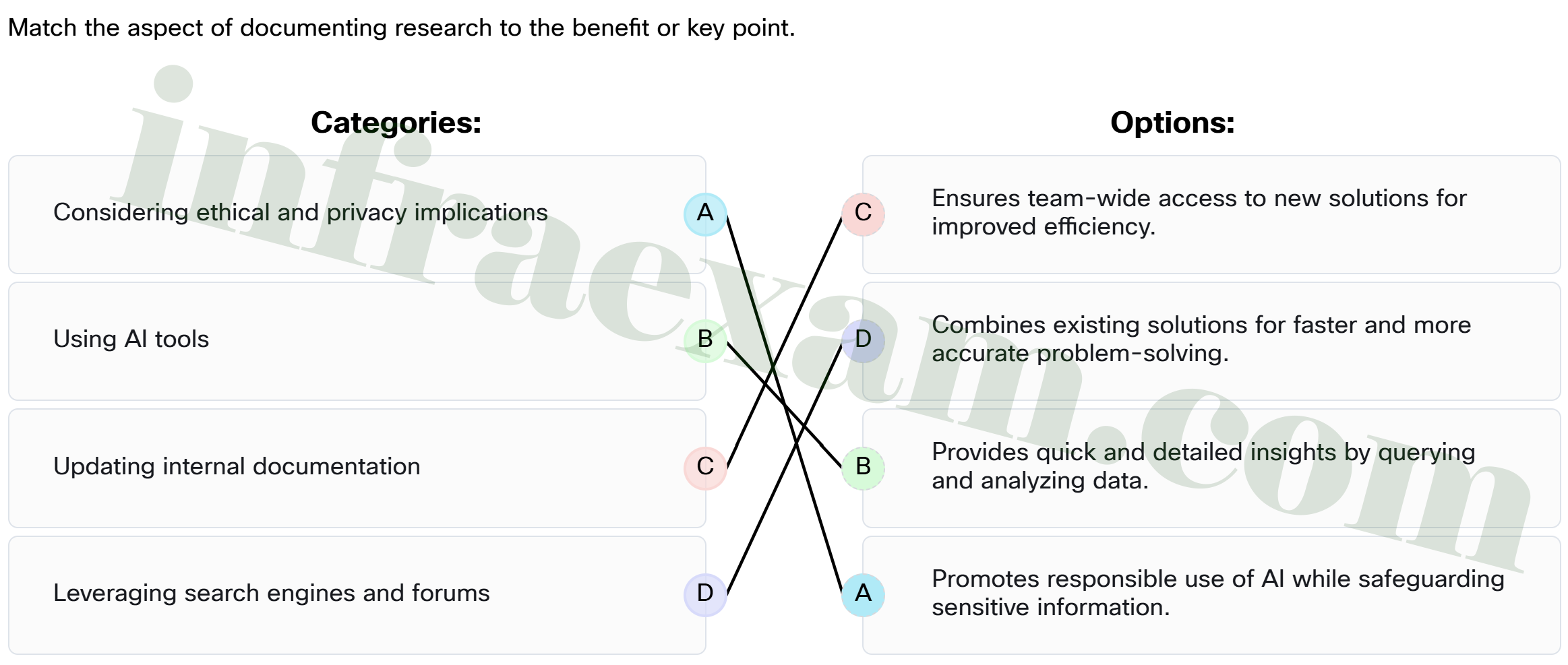
- Considering ethical and privacy implications ==> Promotes responsible use of AI while safeguarding sensitive information.
- Leveraging search engines and forums ==> Combines existing solutions for faster and more accurate problem-solving.
- Using AI tools ==> Provides quick and detailed insights by querying and analyzing data.
- Updating internal documentation ==> Ensures team-wide access to new solutions for improved efficiency.
12. Match each component of a troubleshooting plan with the correct description.
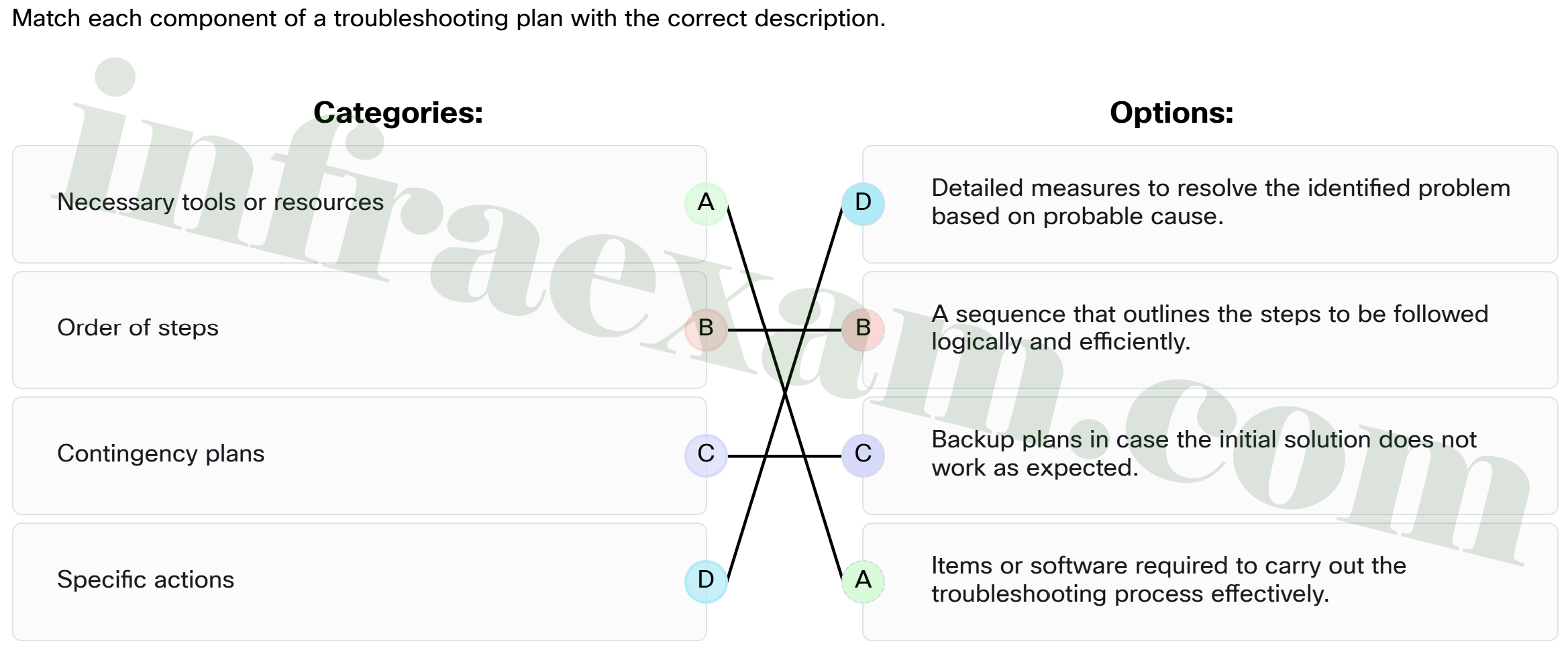
- Necessary tools or resources ==> Items or software required to carry out the troubleshooting process effectively.
- Order of steps ==> A sequence that outlines the steps to be followed logically and efficiently.
- Specific actions ==> Detailed measures to resolve the identified problem based on probable cause.
- Contingency plans ==> Backup plans in case the initial solution does not work as expected.
13. When speaking with a customer during troubleshooting, which practice demonstrates proper conversational etiquette?
- Over simplifying the explanation to ensure that the customer is understanding.
- Using technical terms to explain the issue thoroughly.
- Suggesting that something the customer did caused the problem.
- Asking direct questions to gather relevant information.
Proper conversation etiquette involves asking direct questions to effectively gather the detailed information needed to troubleshoot the issue. Avoid using technical jargon that might confuse the customer and communicate respectfully. Never talk down to the customer, insult them, or suggest they are at fault, as this can damage trust and rapport.
14. Match each feature of remote access software with the correct description.
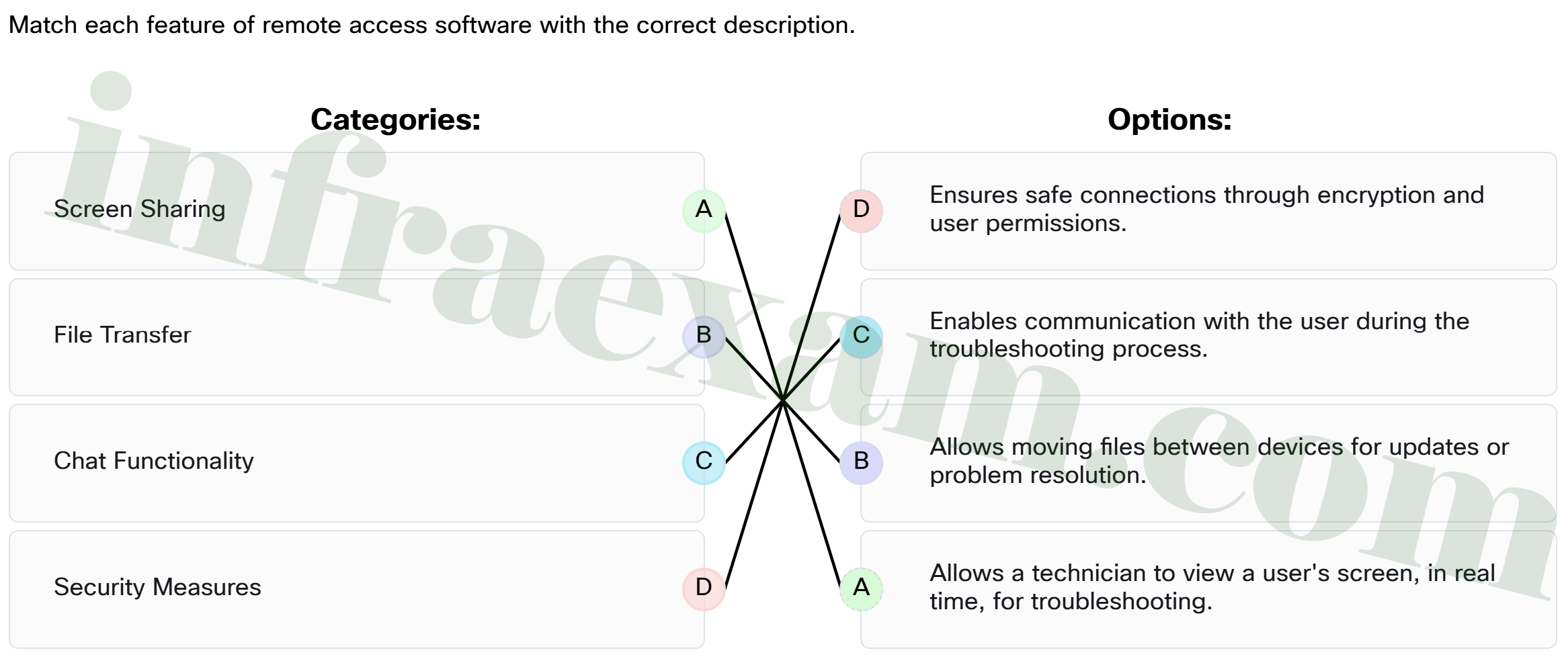
- File Transfer ==> Allows moving files between devices for updates or problem resolution.
- Chat Functionality ==> Enables communication with the user during the troubleshooting process.
- Screen Sharing ==> Allows a technician to view a user’s screen, in real time, for troubleshooting.
- Security Measures ==> Ensures safe connections through encryption and user permissions.
15. After making a change during troubleshooting, what is the first thing the IT support technician should do?
- Immediately proceed to the next possible solution to see if this is a better solution.
- Observe whether the issue is resolved, such as checking if the laptop has a stable connection to a Wi-Fi.
- Assume the issue is resolved and close the case.
- Restart the troubleshooting process from the beginning to handle any new problems introduced by the first solution.
After making a change, it’s crucial to observe the results to confirm whether the issue has been resolved. Check if the laptop now connects to Wi-Fi and whether the connection is stable. Skipping this step or moving on prematurely can lead to unresolved problems or unnecessary actions.
16. What information should be included in the documentation after successfully resolving an issue?
- only the final solution since it is the most important detail
- all personal notes related to the troubleshooting process and the final solution
- the original issue, the steps taken to resolve it, and the final solution
- a list of all tools used during the troubleshooting process
17. Which application provides cross-platform support for Windows, macOS, and mobile devices, with features like file transfer, chat, and session recording?
- Remote Desktop macOS
- Cisco WebEx
- Microsoft Remote Desktop
- TeamViewer
19. Match each step of the troubleshooting process with the correct description.
- Devise a plan. ==> Develop a strategy to address the identified issue based on the probable cause
- Define the problem. ==> Clearly identify and articulate what the issue is.
- Document changes. ==> Record all steps taken to resolve the issue for future reference.
- Gather detailed information. ==> Collect data, ask questions, and document relevant details about the failure.