9.5.2 Quiz Module 9 Troubleshooting Common Hardware Issues Answers
9.5.2 Quiz Module 9 Troubleshooting Common Hardware Issues Answers
The 9.5.2 Quiz Module 9 Troubleshooting Common Hardware Issues Answers provide the correct answers to quiz questions focused on identifying, diagnosing, and resolving common computer hardware problems. These answers help learners review key topics such as power issues, overheating, storage failures, memory problems, peripheral malfunctions, display issues, and systematic troubleshooting procedures. By studying the Troubleshooting Common Hardware Issues Answers, learners can reinforce their understanding of hardware diagnostics and prepare more confidently for the Module 9 quiz and related assessments.
1. Which legacy port on a computer was commonly used to connect printers and is known for transmitting multiple bits of data simultaneously?
- Game
- Parallel
- Serial
- PS/2
2. A technician is setting up a new high-performance server that requires a reliable power connection capable of handling higher current than a typical desktop. Which power cable should the technician select to ensure proper power delivery?
- C13 to NEMA 5-15P
- Lightning cable
- Barrel connector
- C19 to NEMA 5-15P
3. Which macOS Terminal command is commonly used by technicians to check detailed IP and MAC address information when troubleshooting network issues?
- netstat
- system profiler
- ifconfig
- top
4. A user wants to connect an older VGA monitor to a new laptop that only has HDMI ports. Which type of device is necessary to ensure the monitor displays the video correctly?
- USB to PS/2 adapter
- DVI to HDMI adapter
- VGA to HDMI cable
- HDMI to VGA converter
5. A user reports that their high-end graphics software crashes frequently, and their system becomes sluggish even though they recently upgraded their RAM. The support technician confirms that the RAM is installed correctly. What should the technician check next to best address the hardware side of the issue?
- Disable firewall settings that may conflict with graphics rendering.
- Check Device Manager for graphics card errors or outdated drivers.
- Reinstall the operating system to eliminate corrupted files.
- Lower the screen resolution to reduce power consumption.
6. A user submits a ticket stating their desktop computer won’t turn on. The support technician has confirmed the outlet is working by testing it with another device. What is the next best step before escalating the issue or replacing any hardware?
- Verify the power cable is firmly connected to both the power source and the back of the computer.
- Check if the monitor’s display cable is securely connected.
- Replace the power supply unit immediately.
- Reimage the hard drive using a network-based deployment tool to eliminate the possibility of a corrupted operating system causing the issue.
7. Match each USB connector type to the description.
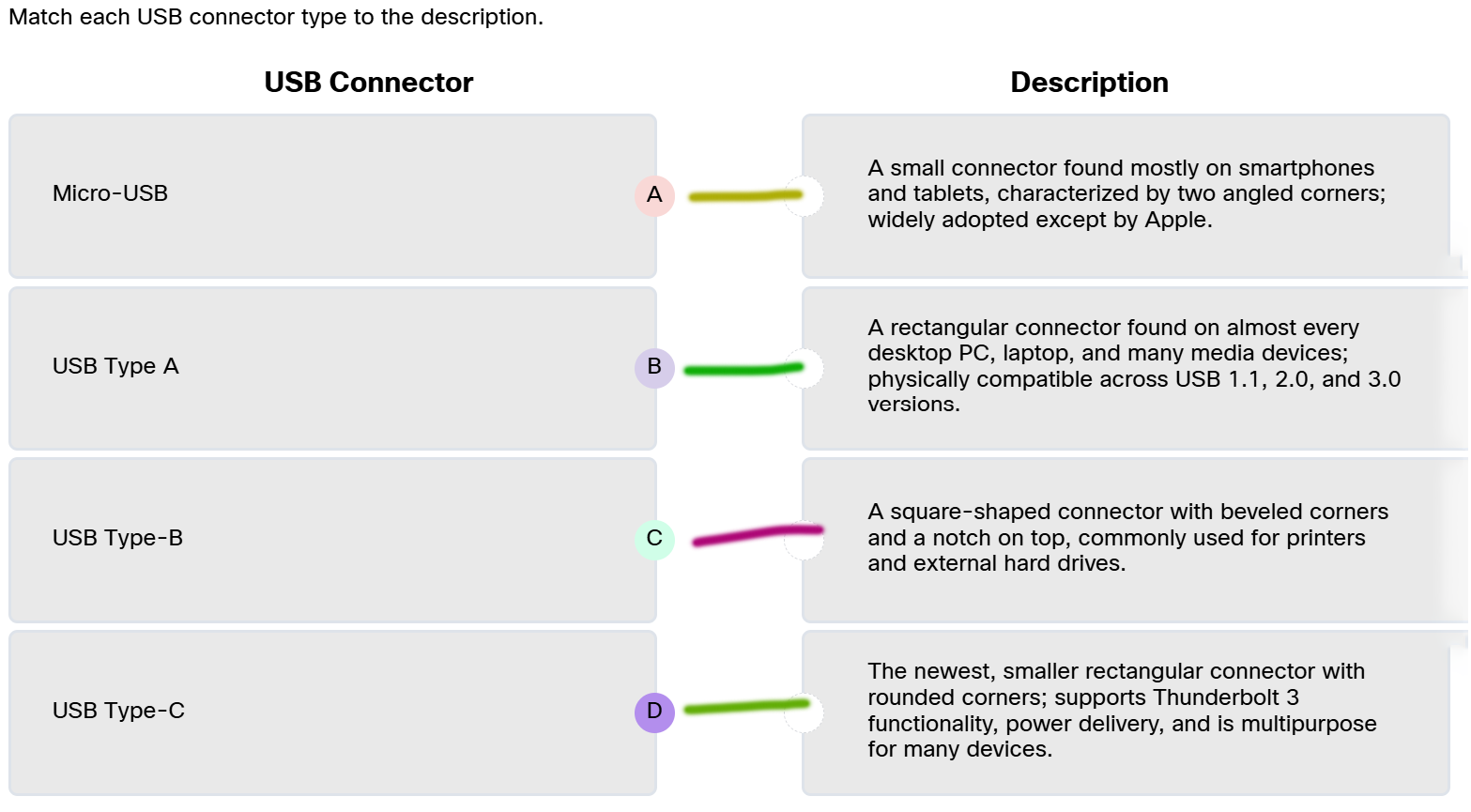
- Micro-USB ==> A small connector found mostly on smartphones and tablets, characterized by two angled corners; widely adopted except by Apple.
- USB Type A ==> A rectangular connector found on almost every desktop PC, laptop, and many media devices; physically compatible across USB 1.1, 2.0, and 3.0 versions.
- USB Type-B ==> A square-shaped connector with beveled corners and a notch on top, commonly used for printers and external hard drives.
- USB Type-C ==> The newest, smaller rectangular connector with rounded corners; supports Thunderbolt 3 functionality, power delivery, and is multipurpose for many devices.
8. When installing new software, why is it important to verify hardware compatibility before proceeding?
- to ensure that all optional hardware features are fully enabled and utilized by the software, enhancing overall user experience
- to confirm that the operating system environment aligns with the software requirements, even if hardware specifications vary slightly
- to reduce the risk of encountering functionality limitations or instability due to mismatches between the software demands and the hardware capabilities of the system
- to avoid installation failures, crashes, or poor performance from insufficient hardware
9. Why might a modern 64-bit application fail to install on an older computer with a 32-bit processor?
- The system drive is formatted as FAT32 instead of NTFS.
- The processor architecture is not compatible with the application.
- The installation process is slowed down due to excessive background processes consuming system resources.
- The RAM is not operating at full speed.
10. A user reports that the USB headset stopped working after a recent system update. The headset lights up when plugged in, but no sound plays and the microphone is not detected. What is the best first step a technician should take using Device Manager?
- Launch Task Manager and check the Processes tab.
- Open Device Manager and check for warning icons under Sound, Video and Game controllers.
- Open Performance Monitor to analyze the headset data throughput and system resource allocation.
- Run Disk Cleanup to remove driver logs.
11. Why is it important for IT technicians to follow electrical safety guidelines when working with computer and printer hardware?
- It helps avoid electrical fires, injuries, and equipment damage by ensuring safe handling and grounding.
- It minimizes the risk of hardware failure due to overheating from power mismatches.
- It allows technicians to safely swap components like AC adapters across different devices to maintain uptime.
- It ensures all connected devices communicate correctly by maintaining proper voltage signaling.
12. Why must a support technician identify a computer’s host name when responding to a user issue?
- It helps confirm the system has a valid IP address before performing network diagnostics.
- It reveals the current operating system version and whether the device needs an update.
- It ensures the technician works on the correct device, especially in environments with similar systems.
- It indicates whether the device uses a wired or wireless connection.
13. A user reports that their desktop computer cannot access internal company websites, but can browse external IPv6 enabled websites without issues. When the support technician issues the ipconfig command, the technician notices that the device has an IPv6 address and an IPv4 address of 169.254.0.2. What is the most likely cause of the internal access issue?
- The device’s IPv6 address is invalid and needs to be updated manually.
- The desktop cannot contact the DHCP server to get a valid IPv4 address.
- The user’s browser is outdated and cannot handle IPv6-formatted URLs.
- The DNS cache needs to be flushed for external websites to load properly.
14. Which Task Manager section details the CPU model, installed RAM, disk usage, and network IP addresses?
- Users, because it shows the memory and CPU usage for each user currently logged into the system.
- Performance, because it displays detailed information about the CPU, memory, disk, and network activity, including IP addresses.
- Services, because it displays information about system services, which are background processes that perform specific functions like managing network connections.
- Processes, because it lists active processes and their resource usage, including CPU and memory.
15. A customer support technician is assisting a user to install a new software application and needs to check if the computer meets the system requirements of the software. Which tool will provide the necessary details about the specifications of the computer, such as processor, RAM, and available disk space?
- Task Manager, because it shows real-time memory usage and disk activity for installed applications.
- System Information, because it summarizes the hardware, software, and network details of the computer.
- Control Panel, because it provides an overview of basic system settings and available storage.
- Device Manager, because it lists all installed hardware components, including the processor and RAM.
16. A user reports that their laptop shut down unexpectedly while they were working late last night. Which tool should the support technician use to find detailed logs about the shutdown?
- Event Viewer, because it records information about system events and errors and can provide insights into the cause of the shutdown.
- System Information, because it provides details on the hardware specifications, which could explain the shutdown due to resource overload.
- Control Panel, because it tracks recent updates or settings changes that could have caused the shutdown.
- Task Manager, because it shows the real-time resource usage and any active processes during the time of the shutdown.
17. A technician is helping a user troubleshoot slow performance on their Mac. Which built-in utility should the technician use to check which programs are putting the most load on the system?
- Console
- Activity Monitor
- About this Mac
- System Settings
18. Match each system detail to its correct description from the About This Mac Tool.
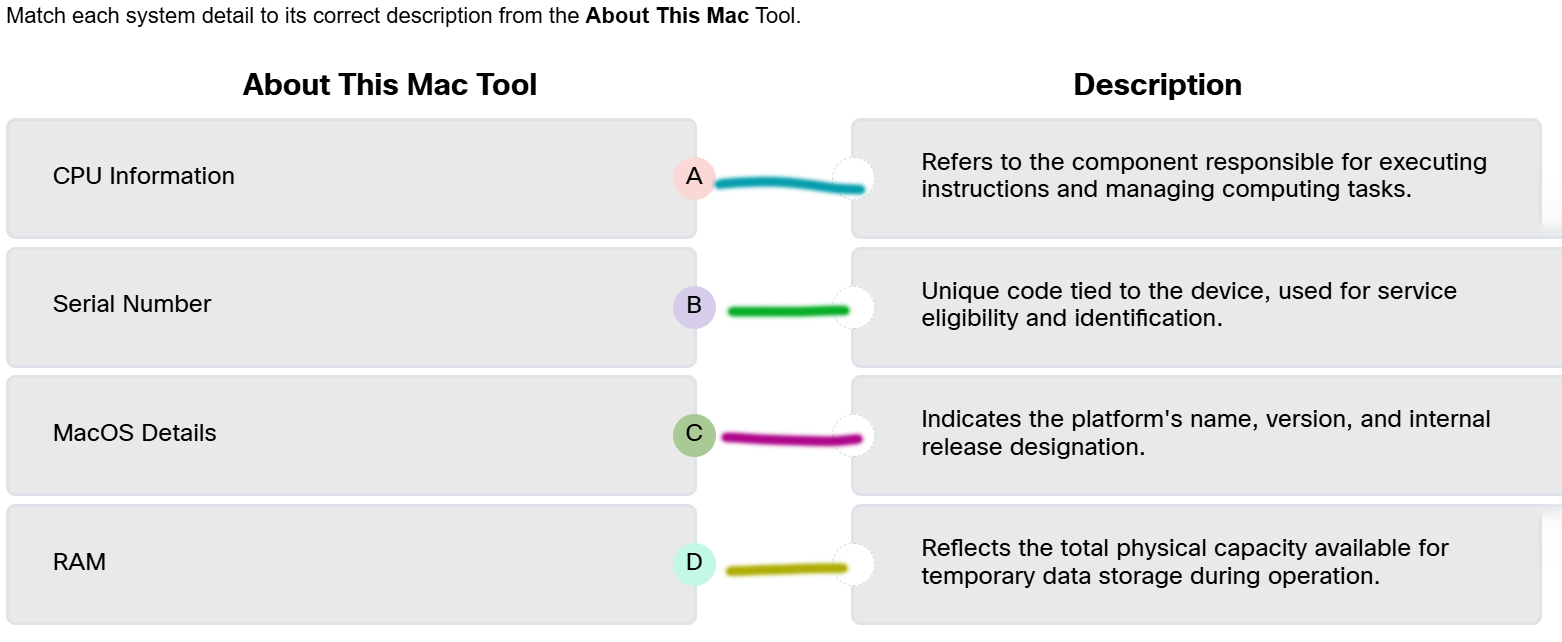
- CPU Information ==> Refers to the component responsible for executing instructions and managing computing tasks.
- Serial Number ==> Unique code tied to the device, used for service eligibility and identification.
- MacOS Details ==> Indicates the platform’s name, version, and internal release designation.
- RAM ==> Reflects the total physical capacity available for temporary data storage during operation.
19. What types of system information can be found in System Settings on macOS?
- a full list of system logs and crash reports
- a list of connected Bluetooth devices and their pairing history
- host name, IP, macOS version, and storage
- details about installed RAM and real-time memory usage
20. What is the primary purpose of the Console utility in macOS?
- To monitor CPU usage, memory performance, and network throughput.
- To update macOS and configure system-wide preferences.
- To display detailed hardware specifications, including RAM, storage, and processor information.
- To review system logs, crash reports, and real-time error messages.