Module 5 Troubleshooting Mobile Devices and Applications 5.8.2 Quiz Exam Answers
Module 5 Troubleshooting Mobile Devices and Applications 5.8.2 Quiz Exam Answers
Module 5.8.2 Troubleshooting Mobile Devices and Applications focuses on identifying and resolving common issues that occur on smartphones and tablets. This quiz exam evaluates learners’ understanding of troubleshooting techniques related to mobile device hardware, operating systems, connectivity, applications, and security settings. Students are expected to apply systematic troubleshooting steps to diagnose problems such as devices not powering on, connectivity failures, application crashes, and configuration errors. Mastering these concepts helps IT professionals efficiently maintain mobile devices and ensure reliable performance in both personal and professional environments.
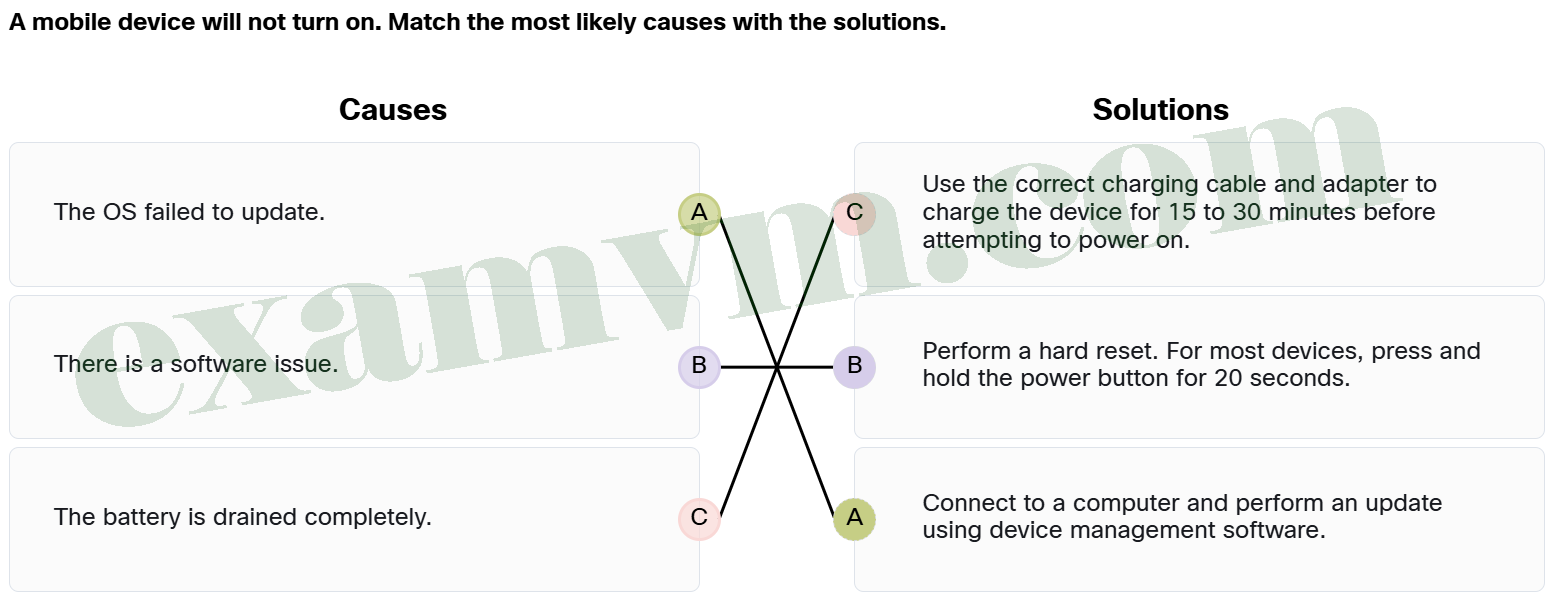
1. A mobile device will not turn on. Match the most likely causes with the solutions.
-
- The OS failed to update. ==> Connect to a computer and perform an update using device management software.
- The battery is drained completely. ==> Use the correct charging cable and adapter to charge the device for 15 to 30 minutes before attempting to power on.
- There is a software issue. ==> Perform a hard reset. For most devices, press and hold the power button for 20 seconds.
If the battery is drained, the first step is to charge the device for 15 to 30 minutes. If there’s a software issue, performing a hard reset by holding the power button for 20 seconds can often resolve the problem. If the OS failed to update, connecting to a computer and using device management software to perform the update is the most effective solution.
2. Which key feature of most collaboration apps is designed for remote work and education?
- Minimized security features and open meeting links
- Video conferencing without screen-sharing capabilities
- Voice commands, note-taking, and AI-generated meeting summaries
- Local-only document storage with no cloud integration
Collaboration apps commonly include AI-powered features like voice commands, note-taking, and transcription of meetings, which enhance productivity and accessibility. These tools are designed to streamline communication and help teams stay organized.
3. What happens when the “Erase Data” option is enabled on an iOS device and the passcode fails 10 times?
- The device will go black, and all data on the device will be erased.
- The device will send a notification to the user’s Apple account and freeze until manually unlocked.
- The device will display a warning but not delete any data until the 15th attempt.
- The device will automatically lock for 24 hours and then allow another attempt.
When the “Erase Data” option is enabled on an iOS device, the device will go black and delete all data after 10 incorrect passcode attempts. This feature is designed to protect sensitive information in case the device is lost or stolen. If backups exist, the device can be restored through iTunes or iCloud’s Manage Storage option.
4. A user is experiencing multiple issues while using a collaboration app on their mobile device, including poor connectivity, audio and video problems, battery drain, and notification overload. What steps should be taken to address these issues?
- Focus on charging the device and ignore updates or settings adjustments.
- Disable all background apps and restrict app notifications.
- Reinstall the collaboration app and reset the device to factory settings.
- Ensure a stable internet connection, update the app and the device, adjust notification settings, and manage battery usage.
Ensuring a stable internet connection is crucial for seamless communication, so check your network. Updating both the app and the device ensures compatibility and improves performance. Adjusting notification settings helps prevent interruptions during meetings, and managing battery usage prevents rapid depletion, especially during extended use.
5. Match each mobile device security feature to the description.
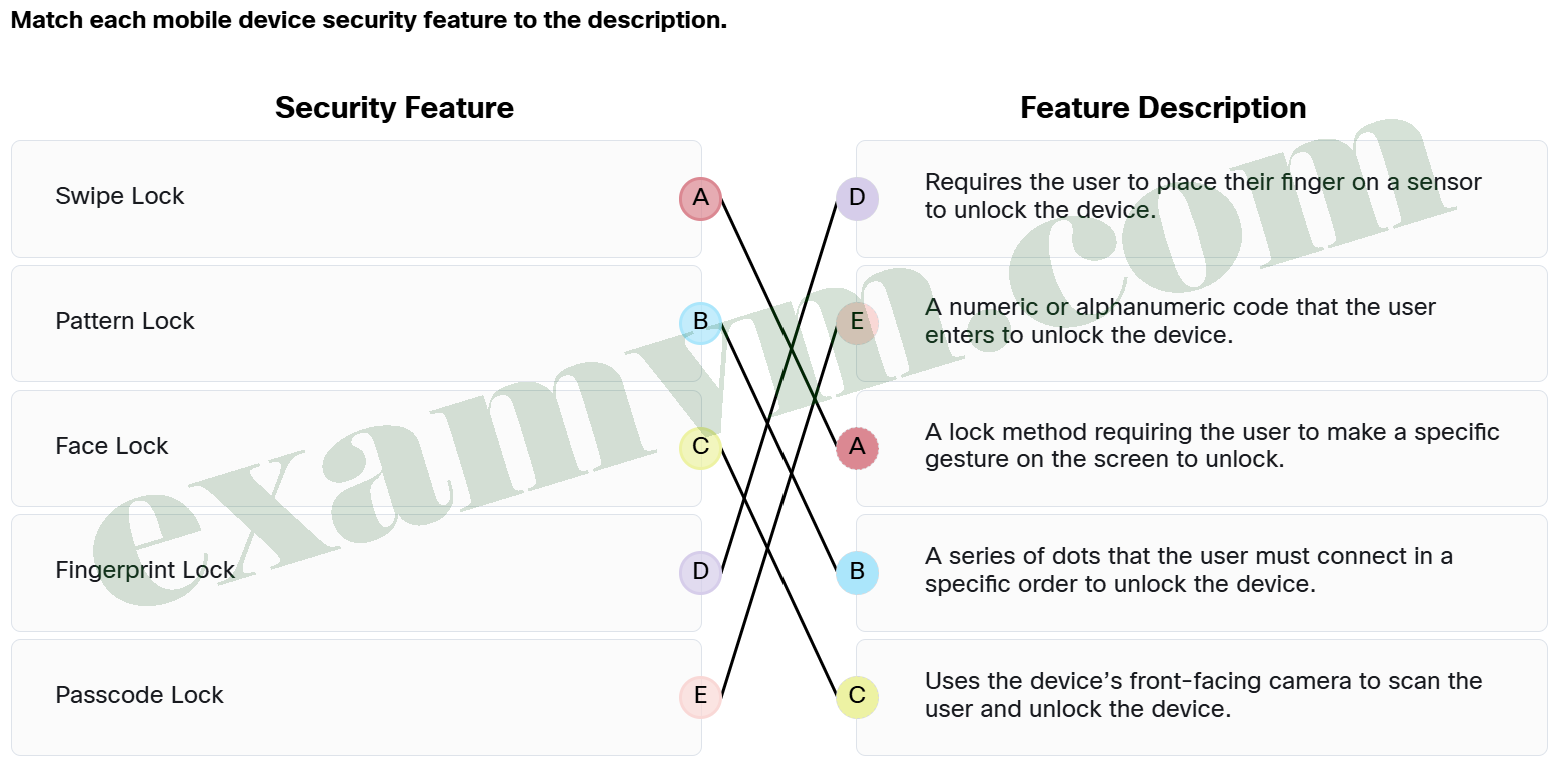
- Face Lock ==> Uses the device’s front-facing camera to scan the user and unlock the device.
- Fingerprint Lock ==> Requires the user to place their finger on a sensor to unlock the device.
- Passcode Lock ==> A numeric or alphanumeric code that the user enters to unlock the device.
- Pattern Lock ==> A series of dots that the user must connect in a specific order to unlock the device.
- Swipe Lock ==> A lock method requiring the user to make a specific gesture on the screen to unlock.
Each of these security features offers a different way to protect a mobile device.
Face Lock uses facial recognition.
Fingerprint Lock relies on the user’s fingerprint for authentication.
Pattern Lock involves drawing a specific pattern on the screen.
Swipe Lock requires a gesture to unlock.
Passcode Lock requires a numeric or alphanumeric code to be entered.
6. What is the most likely situation if a mobile device pairs to a Bluetooth device unintentionally?
- The device is set to automatically pair with unknown devices.
- The device has malware that causes unintended pairing.
- The device’s network settings block peer-to-peer Wi-Fi connections, preventing unauthorized links.
- The device restricts NFC connections by default, reducing accidental proximity-based connections.
If a mobile device is unintentionally pairing with Bluetooth devices, it is likely set to automatically pair with unknown devices. The solution is to adjust the device settings to turn off automatic Bluetooth pairing or disable Bluetooth entirely when not in use. This will prevent unintentional connections and help maintain security.
7. Match each mobile device component to its primary function.
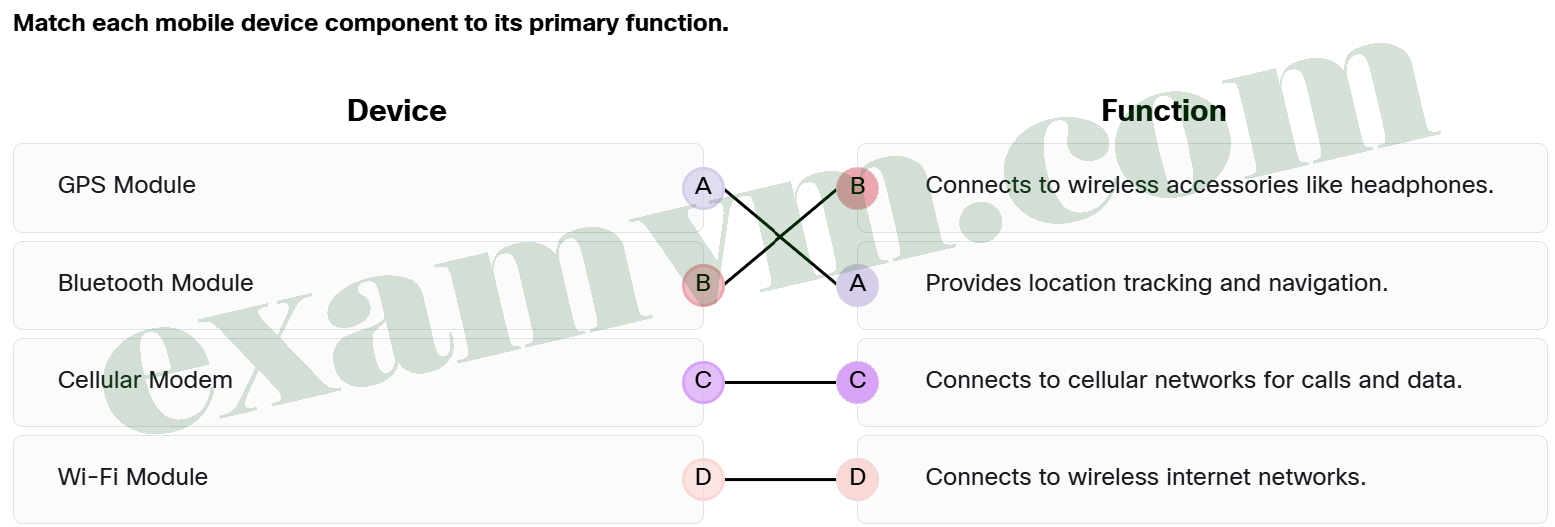
- Wi-Fi Module ==> Connects to wireless internet networks.
- GPS Module ==> Provides location tracking and navigation.
- Cellular Modem ==> Connects to cellular networks for calls and data.
- Bluetooth Module ==> Connects to wireless accessories like headphones.
Each mobile device plays a key role in keeping mobile devices connected and functional. The cellular modem handles calls and data on mobile networks, while the Wi-Fi module connects to wireless internet. Bluetooth is ideal for short-range connections to accessories like earbuds, and GPS ensures accurate location tracking for maps and navigation apps.
8. After fixing a mobile device issue, which steps are most appropriate to ensure the solution has worked?
- Check if the device is able to make a phone call to confirm the device’s overall functionality.
- Focus on testing the internet connection, as this is usually the main cause of most mobile device issues.
- Reboot the device, but do not test other functions just yet. Assume the issue is fixed after a restart before continuing further troubleshooting.
- Perform a variety of tests such as browsing the internet, making calls, and connecting to Bluetooth devices to ensure all features work correctly.
After resolving an issue, it is important to verify full functionality by testing multiple features. This includes actions like browsing the internet, making calls, connecting to Bluetooth devices, and more. By performing a variety of checks, the technician can confirm that the fix addresses the underlying problem and ensures the device works as expected across different functionalities.
9. What is the most likely cause when devices cannot connect to a mobile device hotspot with Wi-Fi connection?
- The hotspot is limited to USB connectivity only.
- The mobile device’s battery is not fully charged.
- The hotspot password is not correct.
- The cellular network is out of range.
If devices are unable to connect to a mobile hotspot, the issue is often due to an incorrect password. Double-check the password and ensure it’s entered correctly on both the mobile device and any device trying to connect. If the password is correct, other issues like the hotspot name or signal range should be considered next
10. After the probable cause has been identified, what is Step 4 in the troubleshooting process for mobile device issues?
- Check if the battery is charged.
- Devise a plan to resolve the problem and test your assumptions.
- Check whether the device is actively connected to the cellular provider’s network.
- Ensure the operating system is fully updated to the latest version.
The Step 4 of the troubleshooting process involves devising a plan to resolve the problem. This is based on the fact that the probable cause has already been identified. This step may include testing the assumptions with actions like restarting the device, updating the OS, or adjusting settings. If necessary, these actions can either resolve the issue or provide more insight into the problem. Testing the theory ensures a more accurate diagnosis and solution.
11. You receive a support call from a user who is experiencing issues with their email app on their mobile device. The user mentions that emails are not being sent or received in a timely manner, and they are unable to view or download attachments. The user also reports that the device intermittently loses internet connectivity. What would be the most effective steps to troubleshoot and resolve these issues?
- Reset the device to factory settings and restore from backup, which might address the problem but could lead to loss of data if a recent backup is unavailable.
- Disable the internet connection and attempt to use email only when connected to Wi-Fi, which can help bypass connectivity issues but is not a long-term solution for intermittent internet loss.
- Reinstall the email app, as it may have been corrupted and could be causing synchronization issues or preventing attachments from being downloaded properly.
- Check the email account settings to ensure the account name, incoming and outgoing server settings, and security settings are correct. Also, verify that synchronization settings are enabled and set to the proper interval, and ensure the device has a stable internet connection.
The first step to solving email-related issues is to check that the account settings are correct, as incorrect settings can cause emails to fail to send or receive. Ensuring that synchronization settings are enabled and that the interval is appropriate will prevent delays in receiving emails. Also, checking the internet connection is crucial, as email issues are often tied to connectivity problems.
12. What is the most common action an Android mobile device takes after several incorrect passcode attempts?
- The device will perform a factory reset automatically after 3 failed attempts.
- The device will only lock after 15 incorrect attempts, requiring a customer service call to unlock it.
- The device locks temporarily, and the user must enter their Gmail account information to unlock it.
- The device allows unlimited attempts until a successful passcode is entered.
On Android devices, after several incorrect passcode attempts (usually between 4 and 12), the device locks temporarily. To unlock it, the user must enter the Gmail account information that was used to set up the device. If this isn’t possible, the user can use Google Find My Device to erase all data, after which the device will need to be set up again or restored from a backup. This mechanism helps protect the device from unauthorized access while providing a recovery option.
13. What is the last step in the systematic troubleshooting process outlined in the Cisco Certified Support Technician (CCST) IT Support Exam objectives?
- Document the changes made to resolve the problem.
- Identify a probable cause of the failure.
- Observe the results of the changes.
- Revise the plan to resolve the problem.
Documenting the changes made is the final step in the troubleshooting process. This ensures that all actions taken are recorded for future reference, helping with accountability and providing valuable information if similar issues arise again.
14. Why is iOS considered a closed-source operating system?
- It is exclusively designed for smartphones and tablets, ensuring it cannot run on other types of devices like computers or smart TVs.
- The source code is private, and modifying it requires Apple’s permission.
- It was released in 2007 and is based on Unix.
- It is only compatible with Apple devices like the iPhone and iPad.
iOS keeps its source code private, preventing unauthorized changes and ensuring Apple controls the system’s functionality. This is the key feature that makes it closed source.
15. Which statement describes open-source software?
- It is a unique software that can run on mobile devices like Android and iOS.
- It is software where the source code is freely available for users to view, analyze, and modify.
- It is software that is open for anyone to access and modify the source code once they have acquired a paid license.
- It is software that hides the source code from users to protect the developer’s intellectual property.
Open-source software gives users access to the source code, allowing them to study how it works and even make changes if needed. This encourages collaboration, transparency, and innovation.
16. Which user practice helps to reduce security risks by limiting app access to unnecessary features on a mobile device?
- Enable battery-saving mode to limit app background activity and permissions.
- Install apps only from trusted sources and restrict all permissions by default.
- Use “While Using” permissions for features like location when available.
- Manually deny access to essential features like the camera and microphone for all apps.
Using “While Using” permissions ensures that apps can access sensitive features, like location, only when they are actively being used, reducing unnecessary exposure when the app is in the background. This approach helps limit the security risks associated with granting broad, permanent access to sensitive data or features.
17. A medium-sized software company wants to quickly develop a custom web application without worrying about managing the underlying infrastructure. Which type of cloud service model is best suited for this scenario?
- PaaS (Platform as a Service)
- SaaS (Software as a Service)
- Private Cloud
- IaaS (Infrastructure as a Service)
PaaS (Platform as a Service) provides developers with the tools, platforms, and databases they need to build, test, and deploy applications quickly, without the complexity of managing the underlying infrastructure. This makes it ideal for companies focused on rapid app development. SaaS would provide ready-made software, and IaaS offers raw infrastructure, but PaaS strikes the right balance for this scenario by empowering developers to focus on coding, not managing servers or networking.
18. Which application is an example of a system app on a mobile device?
- Calendar
- Music
- File Manager
- Contacts
“File Manager” is a system app, which helps manage files and documents on the device. System apps typically include essential tools for device configuration and management, such as Settings and the App Store. “Contacts” and “Calendar” are personal and utility apps, respectively, while “Music” is a media app.